What Is a Bullet Time Effect?
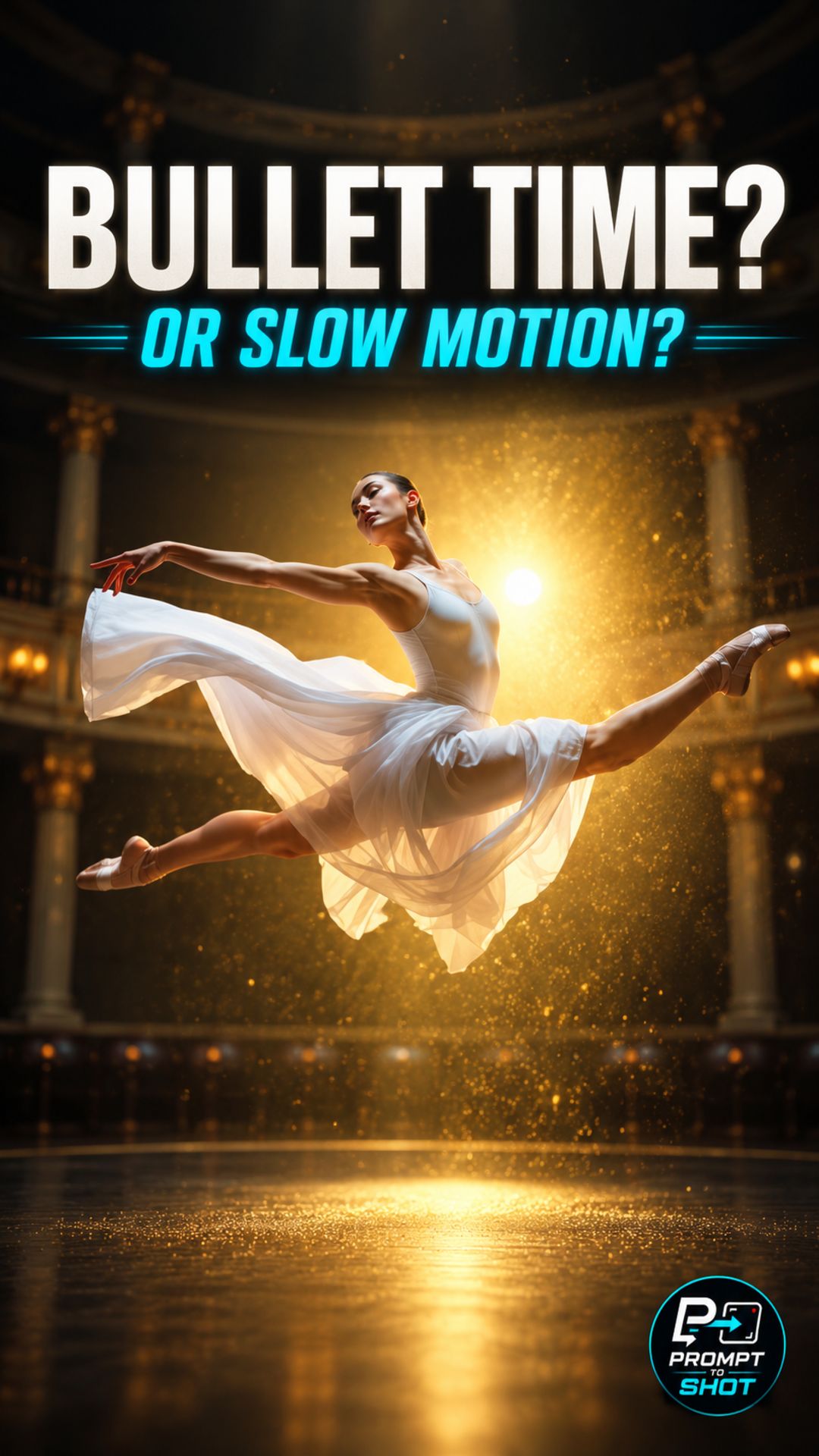
Bullet Time describes a shot where the camera moves — typically orbiting or arcing around a subject — while the scene action appears frozen or dramatically slowed. The two conditions must be visible at the same time: motion in the camera, stillness in the world.
The name comes from the visual idea of moving fast enough around a scene to observe a moment that is otherwise too brief to perceive. In practice, it is a contrast effect. Remove the frozen action and you have a standard orbit. Remove the camera movement and you have slow motion. Bullet Time requires both.
The Three Prompting Rules
Rule 1 — State the camera motion explicitly
The camera instruction must be distinct from the subject instruction. Do not let the model infer orbit from context. Name the direction, arc, and — if the output supports it — the speed or radius of the camera path.
Rule 2 — Describe what is frozen, not just that time is slow
“Slow motion” is interpreted differently across models. In Prompt to Shot tests, this instruction frequently slows the camera as well as the subject, which destroys the contrast. Describe the subject’s frozen state directly: a figure suspended mid-jump, debris held in place, a splash frozen at its peak.
Rule 3 — Maintain camera momentum through the freeze
The camera should not decelerate when the action freezes. In outputs where both slow-motion and orbit are attempted, camera speed often drops as subject speed drops. Make the camera’s continuous travel an independent requirement in the prompt.
What the Prompt Structure Looks Like
Camera orbits [direction] around [subject] at [speed or distance].
[Subject] is frozen mid-[action] — no movement in the body or environment.
Camera continues moving throughout.
Adjust the bracket values to your specific shot. Keep the two instructions separate in the text rather than combining them into a single phrase.
Observed Failure Patterns
In Prompt to Shot tests, three failure modes appear consistently:
- Uniform slowdown — both camera and subject decelerate at the same rate. The frozen contrast is lost.
- Camera stutter — the orbit begins and then hesitates when the subject is fully frozen, producing a noticeable pause.
- Partial freeze — background elements continue to move even when the subject is held still, reducing the effectiveness of the effect.
If any of these appear, isolate the failing instruction and restate it as a separate constraint.
Testing the Result
Watch the output with the camera motion as the primary reference. If the camera slows when the subject slows, the model did not separate the two. If the subject appears to still be moving — even slightly — the freeze instruction was not applied. Both conditions must hold simultaneously for the shot to read as Bullet Time.
Part of the AI Cinematic Effects playlist.